User Interface
The UO Sagas user interface is highly configurable and consists of a few core components. This page gives you a quick tour so you can find your way around the client.
Menu Bar ↑ top

The Menu Bar sits at the top of the screen. It can be expanded or collapsed by clicking the arrow graphic on its left side, and it can be toggled off entirely via your paperdoll: Options → Gumps & Context → Disable Menu Bar.
| Button | What it does |
|---|---|
| Map | Displays the classic map window. Most players use the advanced map under World Map instead. |
| Character | Opens your paperdoll, if it isn't already open. |
| Inventory | Opens your backpack. |
| Journal | Opens your journal (chat and event history). |
| Help | Opens the Help menu — support topics, quick links to game windows and message toggles (see below). |
| World Map | Interactive map with many customizations, including placing your own map markers. Right click anywhere on the map for an options menu. |
| Debug | Displays your frames per second. |
| Connection | Displays the client's connection info to the server. |
| Buff Bar | Opens the window showing ongoing effects on your character. |
| Assistant | Opens the in-game Assistant. |
Help menu ↑ top
The Help button (2026-08 layout) is less a help file than a switchboard:
- Topics — General question opens this wiki in your browser; My character is physically stuck opens the stuck menu, which moves a character that cannot walk out of where it is; Contact staff and Report a bug open the support and bug channels on Discord, which is the staff's primary support platform.
- Quick Links — the Damage Tracker, the Guild menu, the Skill Masteries window, your Achievements, the Skill Caps window and your Champion Scores.
- Optional system messages — toggles for the skill-gain chance messages, the detailed skill mastery messages, and the taming and barding messages.
Paperdoll ↑ top
The paperdoll shows your character and everything they are wearing. Drag equipment onto it to equip, or drag items off to unequip. Its buttons open the main game windows (options, journal, skills, backpack) and the party system.
Backpack ↑ top
Your backpack holds everything you carry. Open it with the Inventory button on the menu bar or from the paperdoll. Items can be dragged between containers, onto your paperdoll, or to the ground.
Character Status ↑ top
The status bar shows your hits, mana and stamina at a glance. Drag your own health bar off the paperdoll (or pull it from your character) to keep it on screen; do the same with other characters and creatures to monitor them in combat.
Journal ↑ top
The journal keeps a scrollable history of everything said and many system messages — useful when a message scrolled by too fast.
World Map ↑ top
The World Map is the recommended way to navigate. It supports zooming, custom map markers and other options — right click anywhere on the map to open its settings.
Sample Screen Layout ↑ top
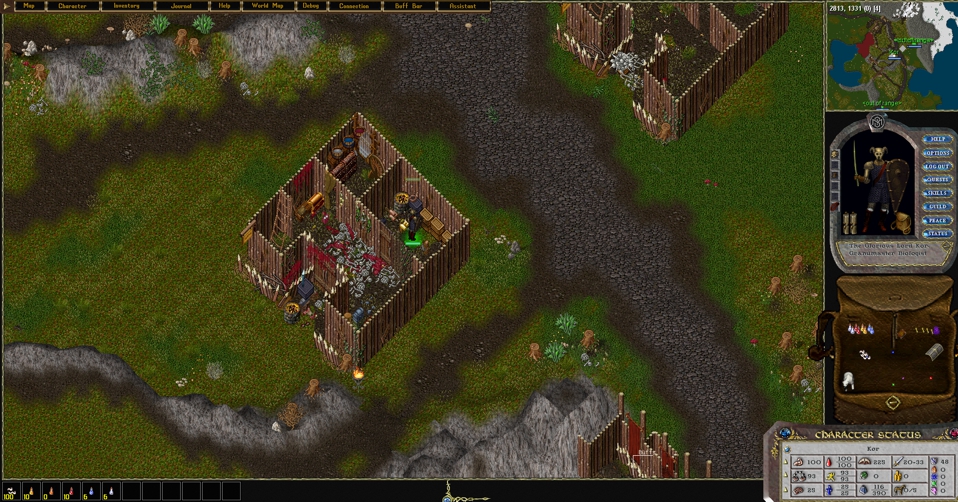
Every window can be dragged wherever you like, so arrange the interface to suit your play style. Here is one example layout:
More Customization ↑ top
Nearly every part of the interface can be tuned from the Options window on your paperdoll — see Game Settings.